Add Pin (needs to be tested and updated)
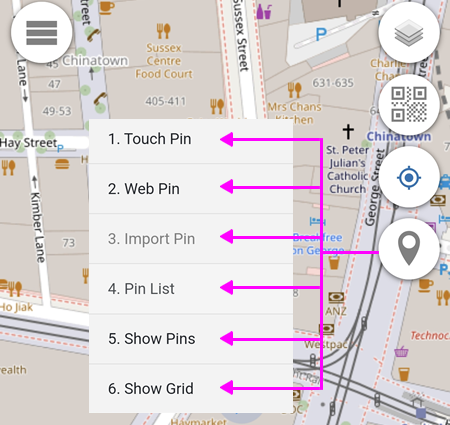
1. Touch Pin
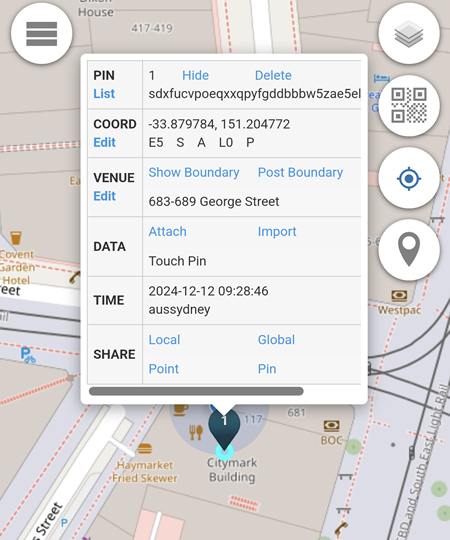
Adding a location pin by touching or clicking on the map.
In the example below, the touch pin is added on the Citymark Building which is located at 683-689 George Street.
2. Web Pin
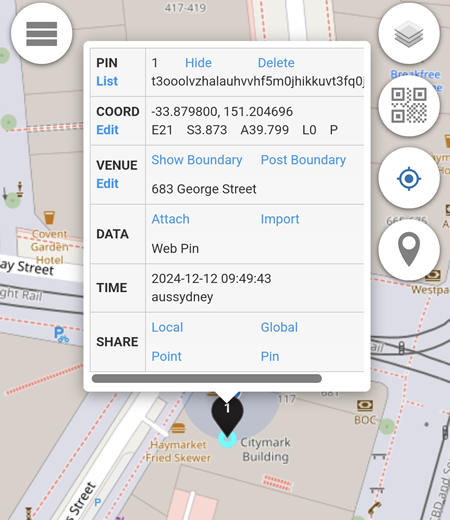
A location pin which is added based on the device current detected location.
In the example below, the device is located somewhere in the Citymark Building.
3. Import Pin
Import Pin is to import pins from a local file or from the server, such as from Home Assistant, Owntracks or Traccar (not available for Private Alias and Area Alias users)
4. Pin List
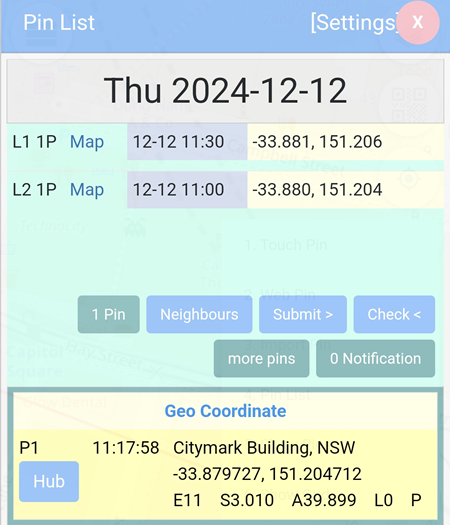
All pins added are listed here.
In the example below, two pins are added at two different locations and at different time intervals.
1 Pin: displays details about the pin (if there are more than 1 pin, the button will reflect the number of pins).
Neighbours: displays the 8 blocks surrounding the location pin.
Submit >: submits the status (not available for Private Alias and Area Alias users)
Check <: displays all status submitted (not available for Private Alias and Area Alias users)
more pins: downloads pins from Home Assistant, Owntracks, Traccar ,etc (not available for Private Alias and Area Alias users)
0 Notification: triggers a ringtone when a certain status is received within the same area block (not available for Private Alias and Area Alias users)
Settings
- Display Date: the pins displayed are based on the date specified.
- Display Timezone: sets the timezone for the pins.
- Submit Block: local, global, region and district block available.
- Display Block: local or global.
- Display To: shows the pins listed on Pin List up to a selected date.
- Display Length: sets the number of days for pins listed on Pin List to be displayed.
- Display Storage: sets the number of days for pins to be stored.
- WebId Duration: determines how long the user's WebId (cookie) remains valid before expiration.
- Auto Download: automatically downloads available pins on the day.
- Auto Pin: automatically adds pins based on selected time duration.
- No Sleep: prevents 88.io from going to sleep (keeping the display on)
- Submit Status: automatically submits a selected status when a pin is added.
- Submit to Agent: sends data to agent (not available for Private Alias users)
- Share Hub Post: allows the posts to be searched by user
quuvoo4ohcequuoxon https://hub.quuvoo4ohcequuox.0.88.io. - Check Status: sets the status to be displayed.
5. Show Pins
By default, the blue button is set to Show Pins.
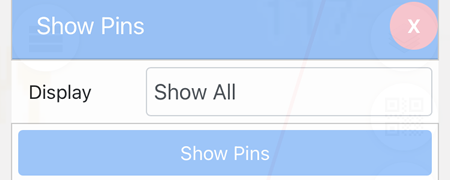
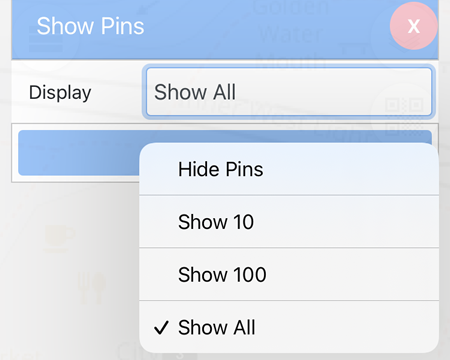
There are 4 options available from the drop down menu that correspond to the blue Show Pins button:
- Hide Pins: all pins will not be displayed on the map.
- Show 10: displays only the last 10 pins.
- Show 100: displays only the last 100 pins.
- Show All: displays all pins.
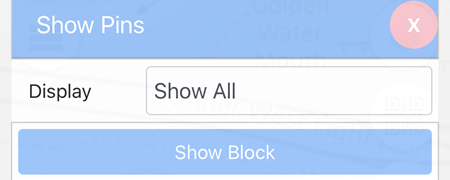
If the blue Show Pins button is clicked, it will toggle to the Show Block button and vice versa.
When the Show Block button is clicked, only 1 pin is displayed per block.
6. Show Grid
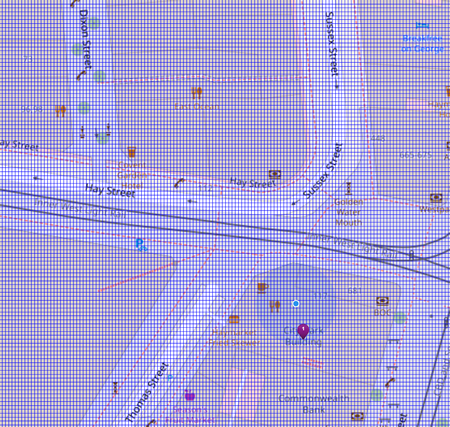
The grid width available are 0.001, 0,0001 and 0.00001.
0.001

0,0001
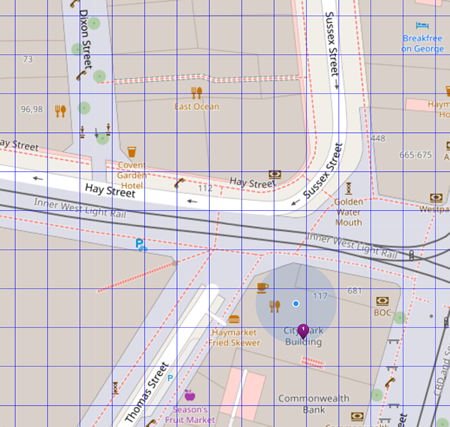
0.00001