Private Alias

Region Map

Area Teams -> Region Map

a. Point

The map displayed will be based on the category or categories selected.

b. Area

The map displayed will be based on the status selected.

c. Level View

BEING DEVELOPED

d. Government

The map displays the area and information of the Local Government Areas (LGAs).

e. Indoor Map

i. Level Browser
A web based viewer for indoor data (inside buildings, level by level) from the OpenStreetMap project.

ii. Floorplan Designer
This is used to draw model buildings with customisable and ready-to-use objects.

Help

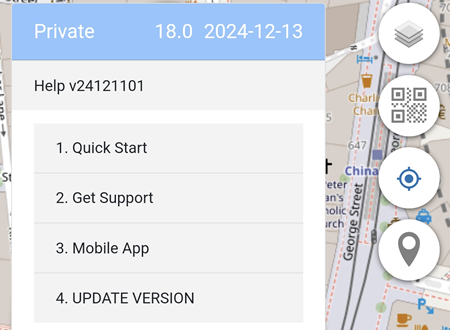
In the example below, the Personal Console is version 24121101

1. Quick Start

A brief explanation what Personal Console is and what it can do.

2. Get Support

This is a place to get help including from other users.

3. Mobile App

Useful OS specific information for Android and iOS

4. UPDATE VERSION

Clicking on the UPDATE VERSION will automatically update Personal Console to the latest version if available.

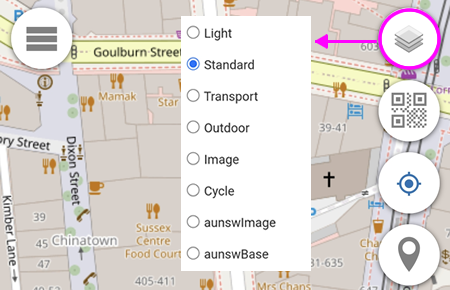
Map Background

You can define up to 8 Base Maps of your choice.
Base Map 1 is always converted into Grey Scale before being displayed.

Default Base Maps are listed below.

1. Light Base Map

Worldwide
Copyright: OpenStreetMap
Native Zoom Level: 19
Maximum Zoom Level: 23

2. Standard Base Map

Worldwide
Copyright: OpenStreetMap
Native Zoom Level: 19
Maximum Zoom Level: 23

3. Transport Base Map

Worldwide
Map Copyright: Thunderforest
Data Copyright: OpenStreetMap
Native Zoom Level: 22
Maximum Zoom Level: 23

4. Outdoor Base Map

Worldwide
Map Copyright: Thunderforest
Data Copyright: OpenStreetMap
Native Zoom Level: 22
Maximum Zoom Level: 23

5. Image Base Map

Worldwide
Copyright: Esri -- Source: Esri, i-cubed, USDA, USGS, AEX, GeoEye, Getmapping, Aerogrid, IGN, IGP, UPR-EGP, and the GIS User Community
Native Zoom Level: 19
Maximum Zoom Level: 23

6. Cycle Base Map

Worldwide
Map Copyright: OpenStreetMap
Data Copyright: CyclOSM
Native Zoom Level: 20
Maximum Zoom Level: 23

7. aunswImage Base Map

New South Wales Australia only
Copyright: NSW Spatial Services
Native Zoom Level: 21
Maximum Zoom Level: 23

8. aunswBase Map

New South Wales Australia only
Copyright: NSW Spatial Services
Native Zoom Level: 19
Maximum Zoom Level: 23

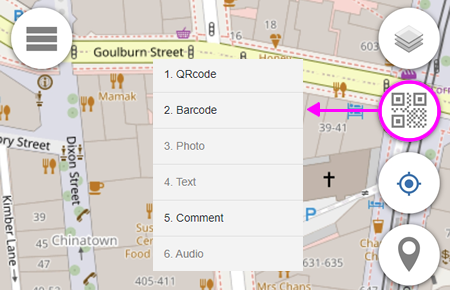
Camera Scanner

0 Mode
1 QRcode
2 Barcode
3 Comment
4 Photo (not available for Private Alias users)
5 Text (not available for Private Alias users)
6 Audio (not available for Private Alias users)

Comment

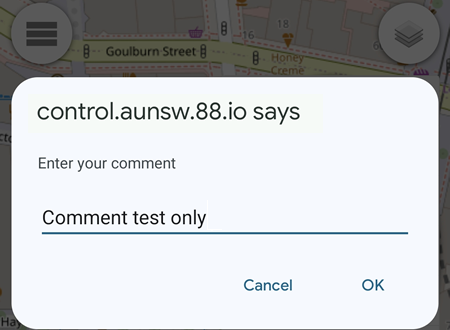
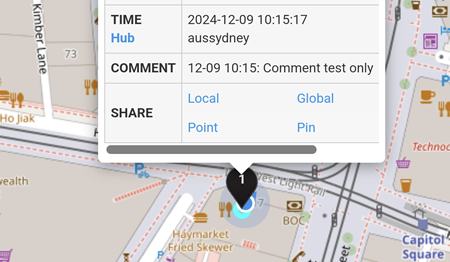
The Comment feature adds comment to a location pin on the map.

In the example below, the comment entered is

By clcking the OK button, a black_location_pin pin will be added on the map and clicking on the pin will display the comment entered.

For Community Alias users, the comment will also be posted on https://hub.aunsw.88.io and https://hub.quuvoo4ohcequuox.0.88.io if Comment is selected in the Publish Pins menu.

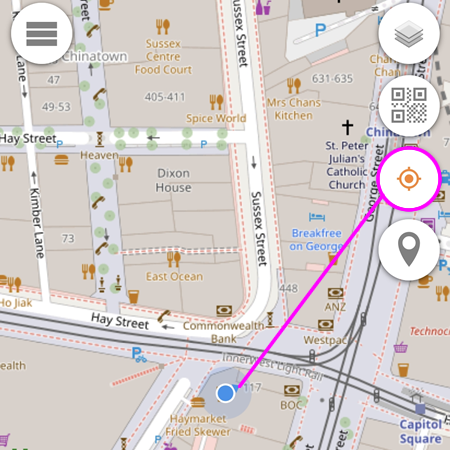
Current Location

Enabling the Current Location button (indicated by the orange circle) will display the current location of the device (indicated by the blue circle).

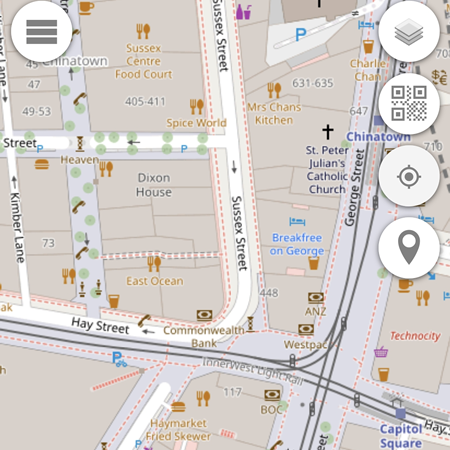
Disabling the Current Location button will not display the current location of the device.

Add Pin (needs to be tested and updated)

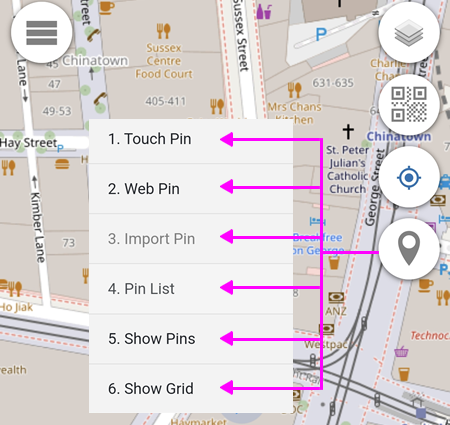
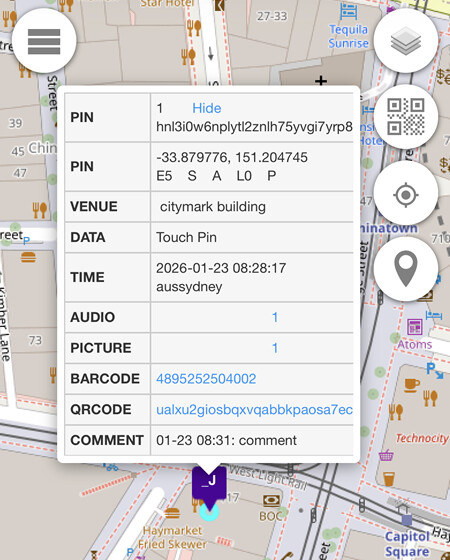
1. Touch Pin

Adding a location pin by touching or clicking on the map.

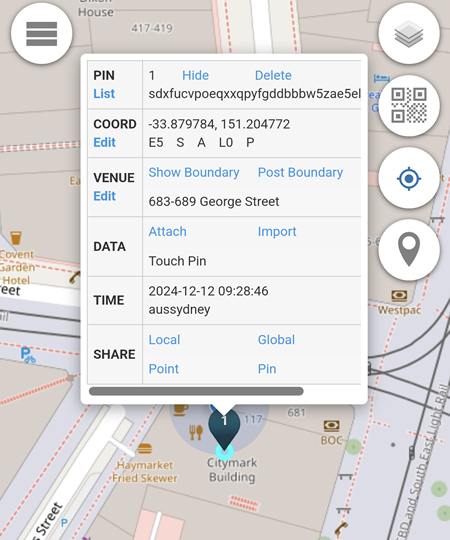
In the example below, the touch pin is added on the Citymark Building which is located at 683-689 George Street.

2. Web Pin

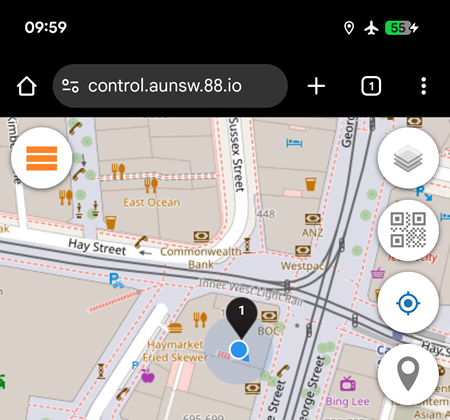
A location pin which is added based on the device current detected location.

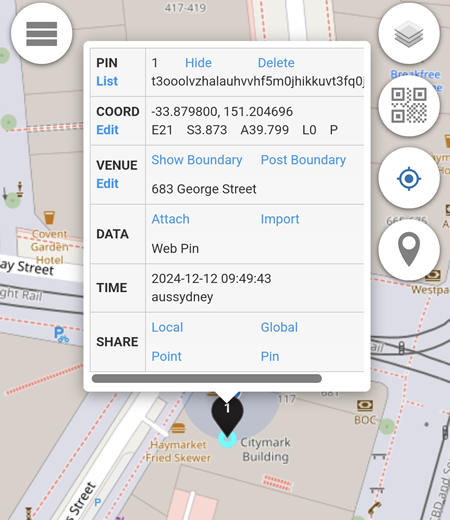
In the example below, the device is located somewhere in the Citymark Building.

3. Import Pin

Import Pin is to import pins from a local file or from the server, such as from Home Assistant, Owntracks or Traccar (not available for Private Alias and Area Alias users)

4. Pin List

All pins added are listed here.

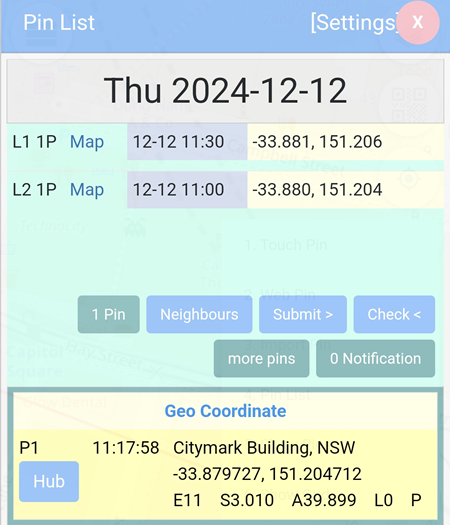
In the example below, two pins are added at two different locations and at different time intervals.

1 Pin: displays details about the pin (if there are more than 1 pin, the button will reflect the number of pins).
Neighbours: displays the 8 blocks surrounding the location pin.
Submit >: submits the status (not available for Private Alias and Area Alias users)
Check <: displays all status submitted (not available for Private Alias and Area Alias users)
more pins: downloads pins from Home Assistant, Owntracks, Traccar ,etc (not available for Private Alias and Area Alias users)
0 Notification: triggers a ringtone when a certain status is received within the same area block (not available for Private Alias and Area Alias users)

Settings

  • Display Date: the pins displayed are based on the date specified.
  • Display Timezone: sets the timezone for the pins.
  • Submit Block: local, global, region and district block available.
  • Display Block: local or global.
  • Display To: shows the pins listed on Pin List up to a selected date.
  • Display Length: sets the number of days for pins listed on Pin List to be displayed.
  • Display Storage: sets the number of days for pins to be stored.
  • WebId Duration: determines how long the user's WebId (cookie) remains valid before expiration.
  • Auto Download: automatically downloads available pins on the day.
  • Auto Pin: automatically adds pins based on selected time duration.
  • No Sleep: prevents 88.io from going to sleep (keeping the display on)
  • Submit Status: automatically submits a selected status when a pin is added.
  • Submit to Agent: sends data to agent (not available for Private Alias users)
  • Share Hub Post: allows the posts to be searched by user quuvoo4ohcequuox on https://hub.quuvoo4ohcequuox.0.88.io.
  • Check Status: sets the status to be displayed.

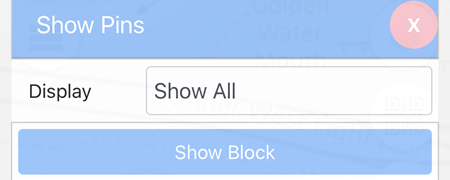
5. Show Pins

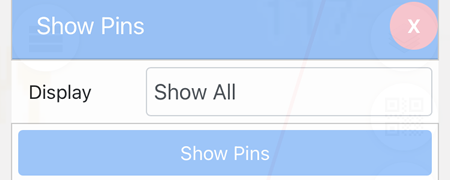
By default, the blue button is set to Show Pins.

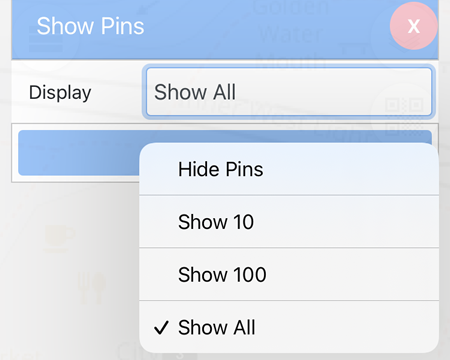
There are 4 options available from the drop down menu that correspond to the blue Show Pins button:

  • Hide Pins: all pins will not be displayed on the map.
  • Show 10: displays only the last 10 pins.
  • Show 100: displays only the last 100 pins.
  • Show All: displays all pins.

If the blue Show Pins button is clicked, it will toggle to the Show Block button and vice versa.

When the Show Block button is clicked, only 1 pin is displayed per block.

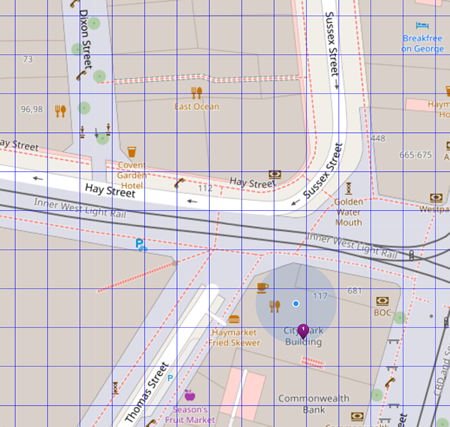
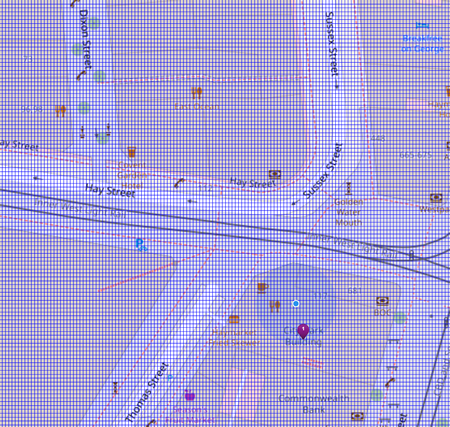
6. Show Grid

The grid width available are 0.001, 0,0001 and 0.00001.

0.001

0,0001

0.00001
Location Pin

Each colour of the location pin represent a different type of pin:

  • purple_marker Adjusted Pin (e.g: from venue name change)

  • orange_marker Imported Pin (e.g: from Phonetrack)

  • blue_marker QR pin

  • green_marker Touch Pin

  • black_location_pin Web Pin

  • grey_marker Other Pin (e.g: from Phone Verification)

  • share_pin Share Pin

NOTE:
If the Personal Console window remains open, adding location pins will still work even if there is no internet connection (offline), indicated by the orange Menu button

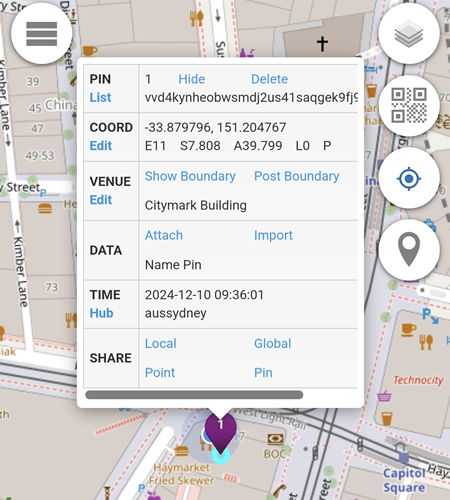
PIN

pin

The Hide button will hide the location pin from the map.

To unhide the location pin, click on the location_button button and select the Show Pins menu.

The Delete button will delete the current location pin permanently.

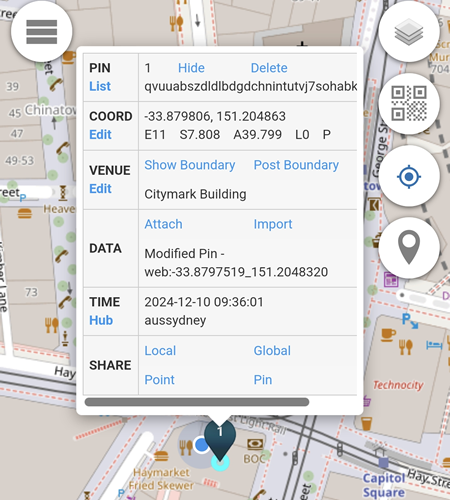
COORD

coord

Based on the location pin above:
Latitude: -33.879796
Longitude: 151.204767
E11: error of up to 11 metres
S7.808: speed of 7.808 km/h
A39.799: altitude of 39.799 metres
L0: the ground floor level of the building
P: the pressure value (requires import pin)

The Edit button will allow users to:

1. Change Coordinates by Touch

By simply using a Touch Pin, the current coordinates will be replaced by the new touch pin. In the example below, the New Latitude and New Longitude are changed to -33.879806 and 151.204863.

2. Change Level

By default, the level used on locations pins will always be L0 (Ground Floor). In the example below, the level is changed to L3 (Level 3)

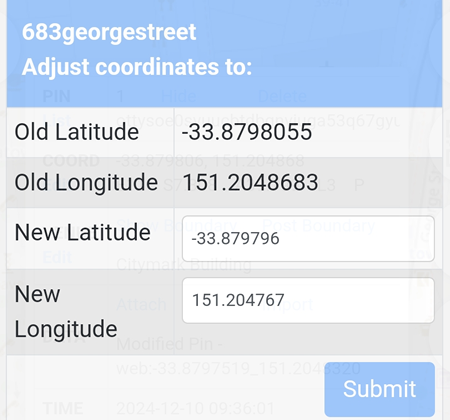
3. Change Coordinates by Input

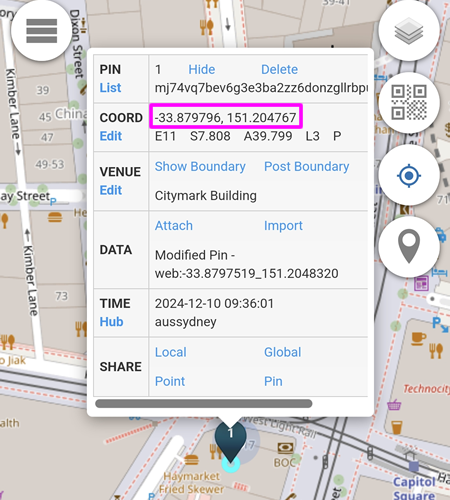
In the example below below, the new Latitude and Longitude will be used if submitted.

The location pin with the new latitude and longitude is displayed.

VENUE

Venue is not available for Private Alias users.

DATA

Attach

Attach is not available for Private Alias users.

Import

Import is not available for Private Alias and Area Alias users.

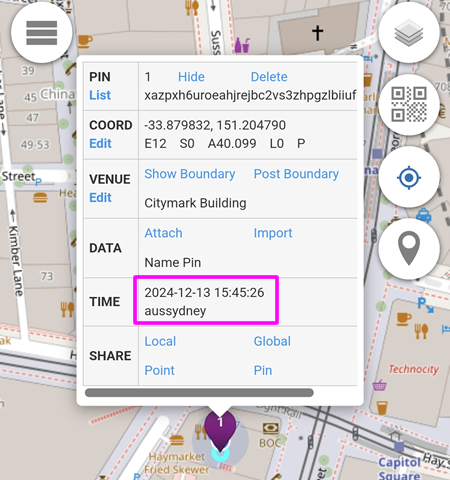
TIME

Time displays the local time in yyyy-mm-dd hh:mm:ss format.

In the example below, the time displayed is:

Year: 2024
Month: 12 (December)
Date: 13
Hour: 15 (3pm)
Minute: 45
Second: 26
aussydney: Australia - Sydney

SHARE

This feature allows the location to be shared via email, SMS, Instant Messaging apps etc.

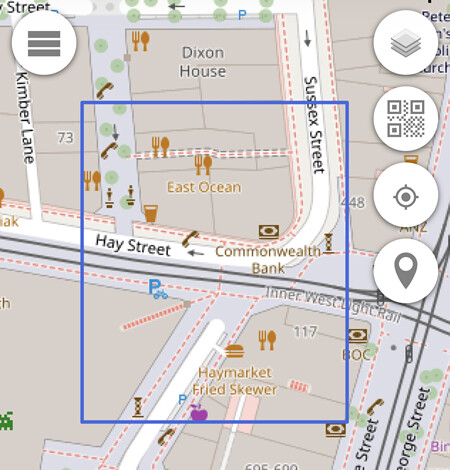
Local

When clicked, a local sharing link copied to clipboard.

In the example below, the local sharing link is https://88.io/?share=-33.880_151.204_area and the blue rectangle displayed is the result.

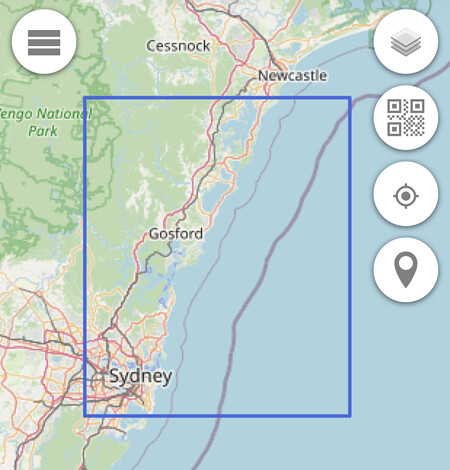
Global

When clicked, a global sharing link copied to clipboard.

In the example below, the global sharing link is https://88.io/?share=-34_151_global and the blue rectangle displayed is the result.

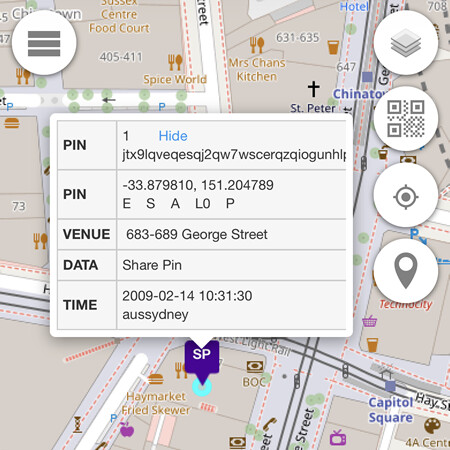
Point

When clicked, a point sharing link copied to clipboard.

In the example below, the point sharing link is https://88.io/?share=-33.8798093_151.2047890_point

Pin

This feature is not available for Private Alias and Area Alias users.

Any attachments linked to a pin are included when it is shared. In the example below, the pin contains an audio file, an image, a barcode, a QR code, and a comment.

These are all accessible through the following sharing link https://88.io/?share=_JbAZZVq33P0ArCmlbsTMet7DscJBcSbX9aShrbph&cId=mjbpwzzjhrvm

Marker

Message and Meet

When a QR code is scanned using the mobile phone camera or when an NFC tag is scanned, a pop-up window will be displayed.

Message (SMS)

When option 1 is selected, the message from the sender will be delivered to the Marker Owner (Community Alias required) via SMS.

The Marker Owner mobile number must first be registered at Identity Teams -> Alias List -> Alias Details -> Phone Number (the mobile number must be in international format, e.g: 61499331111 for an Australian mobile number).

From the sender

The message sent will also be posted on the Marker Owner's private hub.

The SMS received by the Marker Owner.

Meet

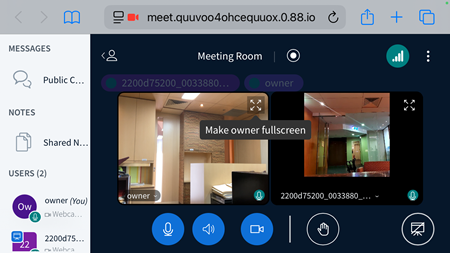
When option 2 is selected, for the caller, a conference website will open.

For the Marker Owner, a 'Join the meeting' web address notification will be sent via SMS.

When the Marker Owner joins, both parties will be able to communicate using audio and/or video.

Note: To view the video on certain mobile phones, especially those with smaller screens, the device must be positioned in landscape mode.

To maximise the video, click on video_maximise icon.

Cancel

When option 0 is selected, the pop-up window will close.

Whichever option is selected, a QR pin will be placed on 88.io.