Home
Location Pin -> Attach -> Home
Requirements:
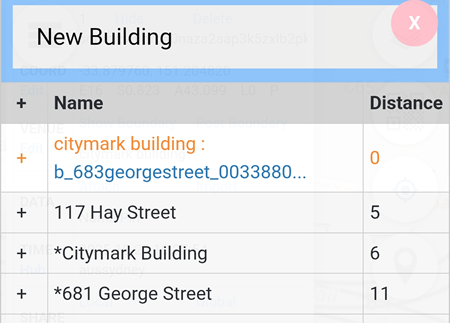
- Define the Venue Name
- Attach a Survey file
- Generate an Activity Marker
To define a venue name:
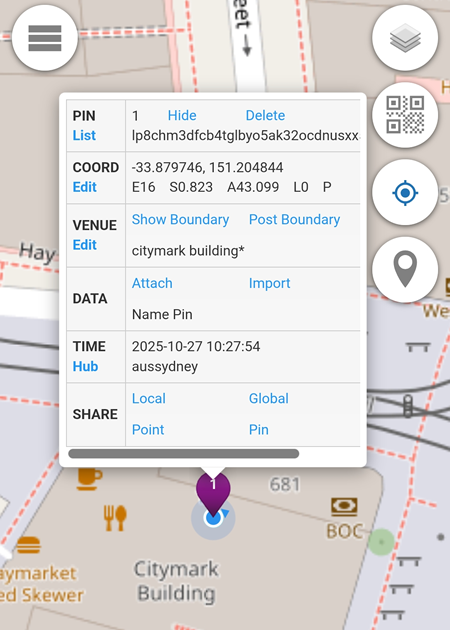
- Click on the Location Pin.
- Select Edit (Venue).
- Click on the digit in the Distance column (third column), e.g., 0 in the example below.
Once the venue name is defined, the location pin will turn purple.
The next step is to click Attach → Home, then:
- Attach a Survey file
- Generate an Activity Marker
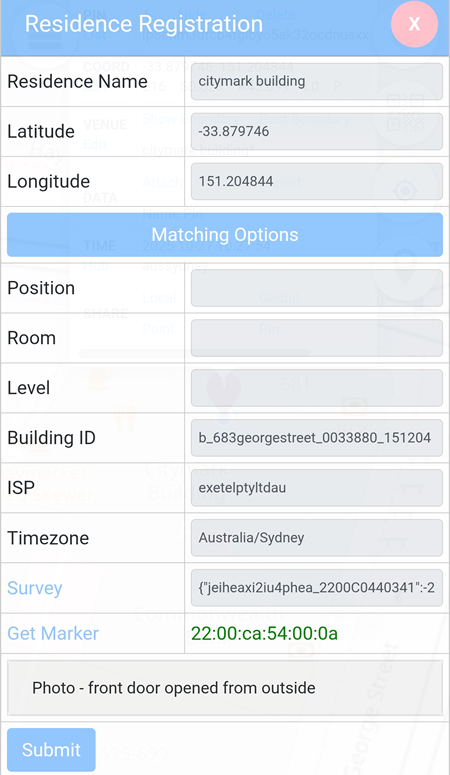
Then submit two photos separately taken either:
- On the same day, or
- Over two consecutive days (if the first photo is taken between 9:00 PM and 12:00 AM)
Each photo must meet the specific time and framing requirements below:
Photo 1:
Front Door Open – Taken from Outside
- What to Capture: The front door fully open, clearly visible from the outside
- When to Capture: Within the 3-hour window between 6:00 AM and 9:00 AM
Photo 2:
Front Door Closed – Taken from Inside
- What to Capture: The front door fully closed, clearly visible from the inside
- When to Capture: Within the 3-hour window between 9:00 PM and 12:00 AM (midnight)
During the verification period, your progress is displayed in the format {days}^{morning}^{night}.
For example:
- The notation indicates the current day of verification and which photo (morning or night) has been submitted.
- The verification starts from the first photo you upload — this can be either the morning or night photo.
- For instance, if it’s the first day and you’ve just submitted the morning photo, the progress will display as: 1^1^0^m (Day 1, Morning photo submitted)

NOTE:
The Position, Room, and Level entered are checked each time a photo is submitted. If any of these values differ between the morning and evening photos, the verification process will be reset and must start over from the beginning.
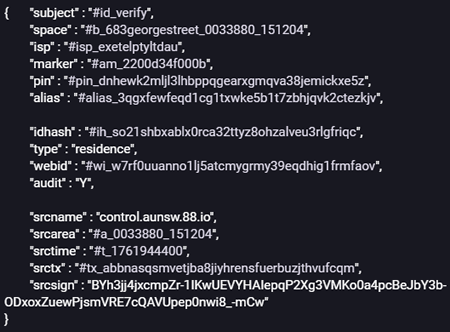
Once the second photo is submitted (either morning or night), the Verification Token will be displayed.
This token confirms that both required photos for the day have been successfully submitted and the verification for that day is complete.
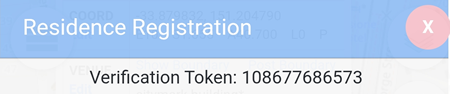
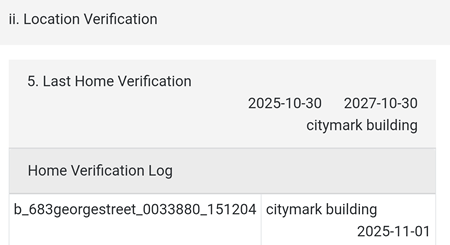
The Verification Token will also be displayed on the Identity Teams → Alias Verification → Location Verification → Last Home Verification page
This confirms that the verification process has been successfully completed and recorded in the system.
If Verification is selected in Event Teams → Publish Pins, the Verification post will be displayed.