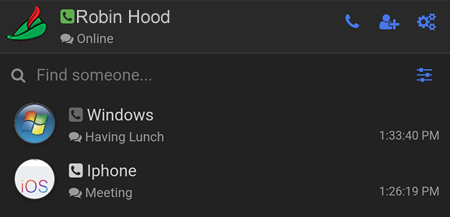
Web Browser Phone
You need to have an Area Alias or above to make calls using Browser Phone.
Browser Phone is a web based application that allows users to make and receive voice calls as well as text messages across different platforms, such as:
Software
Currently the browser phone is implemented with the following Browser Phone as default:
As of 2025-08-01 we are using version 0.3.29 (SHA 33902782876259957b18f9ca71f811ae0f29b6b3)
Requirements
An Area alias or higher
Web Phone Setup Instructions
Step 1: Access the Web Phone
- https://phone.88.io
- https://phone.aunsw.88.io
- https://phone.quuvoo4ohcequuox.0.88.io (Community Alias required)
If this is your first time using the site, your browser may ask for permission to use your microphone.
Important: You must allow this permission for the browser phone to work correctly.
Step 2: Open Account Settings
Select the Account menu and enter the details below based on your user type.
You can use any of the following as the SIP Username:
a. Phone Number used during registration for the Area Alias, e.g., 61481336803 followed by w
b. 8-Digit Number located at Area AI Apps → Teams → Team A → Application, e.g.: 89527982 followed by w
Password
Located at Area AI Apps → Teams → Team A → Application, e.g.,: vvuyw5v0yrag42bomvcrm3otzl52i5c8
- Secure WebSocket Server (TLS): phone.88.io
- WebSocket Port: 8091
- WebSocket Path: /ws
- Full Name: Your name
- Domain: 88.io
- SIP Username: your mobile number followed by
w(e.g.61499331111w) - SIP Password: the alphanumeric password located at Area AI Apps → Teams → Team A → Application.
- Subscribe to Voicemail (MWI): Yes
- Chat Engine: SIP
To exchange text messages, on Android use Conversations and on iOS use Monal.
For https://phone.aunsw.88.io -> can be used with answering forwarded calls.
The simplest way is to use a single URL with all the details, e.g:
https://your-site/index.html?secureWebSocketServer=phone.aunsw.88.io&websocketPort=8091&websocketPath=%2Fws&fullName=John&domain=example.com&username=1001&password=secret
Replace
- your-site with phone.aunsw.88.io
- John with your name
- example.com with aunsw.88.io
- 1001 with 89xxxxxxw, for example: 89407057w (Area AI Apps → Teams → Team A → Application)
- secret with the 32 alphanumeric password (Area AI Apps → Teams → Team A → Application)
Alternatively, you can manually enter the parameter values at https://phone.aunsw.88.io
- Secure WebSocket Server (TLS): phone.aunsw.88.io
- WebSocket Port: 8091
- WebSocket Path: /ws
- Full Name: Your name
- Domain: aunsw.88.io
- SIP Username: the 8-digit number located at Area AI Apps → Teams → Team A → Application followed by
w(e.g.89527982w) - SIP Password: the alphanumeric password located at Area AI Apps → Teams → Team A → Application.
- Subscribe to Voicemail (MWI): Yes
- Chat Engine: SIP
To exchange text messages, on Android use Conversations and on iOS use Monal.
For https://phone.quuvoo4ohcequuox.0.88.io (Community Alias required)
- Secure WebSocket Server (TLS): phone.quuvoo4ohcequuox.0.88.io
- WebSocket Port: 8091
- WebSocket Path: /ws
- Full Name: Your name
- Domain: phone.quuvoo4ohcequuox.0.88.io
- SIP Username: the 6-digit random number located at Community AI Apps → Phone Services → Exchange Service → Internet Number. If it shows
NIL, enter your mobile number and select the Register button. Important: Do not forget to write down or screenshot the password displayed. - SIP Password: the 12-digit number displayed when registering for the Internet Number.
- Subscribe to Voicemail (MWI): Yes
- Chat Engine: XMPP
- Extension Number: the 6-digit random number located at Community AI Apps → Phone Services → Exchange Service → Internet Number.
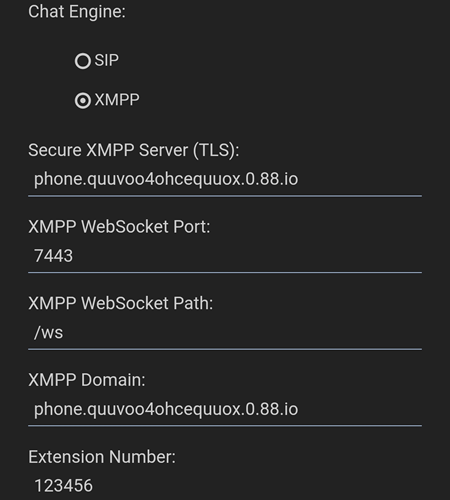
Step 3: Save Settings
Leave all other fields set to their default values.
Scroll to the bottom of the page and click Save.
When the Reload Required pop-up appears, click OK to continue.
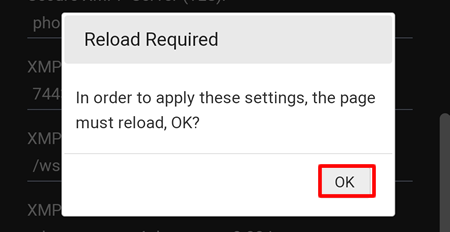
When registration is successful, you will see the dial pad. This means you’re ready to make and receive voice calls.
Voice Calls
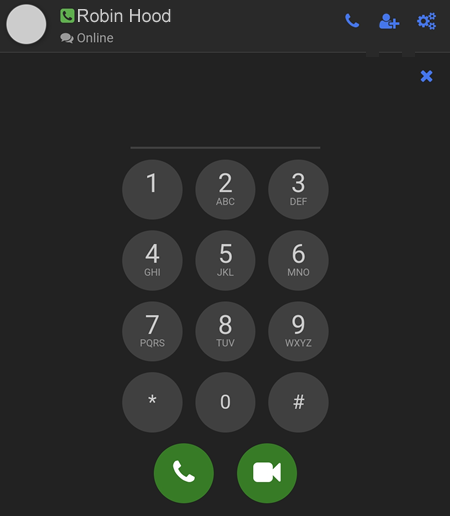
To make free outbound calls to numbers mapped to e164.name such as to other browser phone users, simply select the  button and the keypad will be displayed.
To make chargeable outbound calls, i.e: to numbers not mapped to e164.name, a Community Alias is required.
Community Alias only
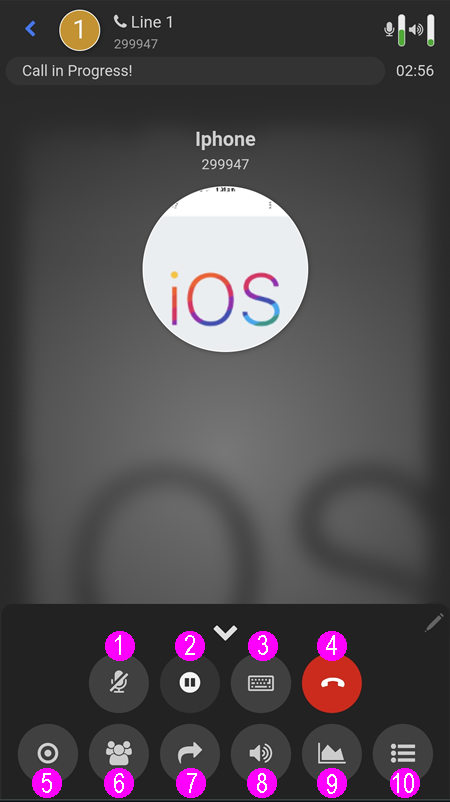
1 - Mute Microphone
2 - Call on Hold
3 - Send DTMF
4 - End Call
5 - Record Call
6 - Conference Call
7 - Call Forward
8 - Speakerphone/Headset selection
9 - Call Connection Statistics
10 - Call History
The Home Assistant app needs to be running (can be in the background).
To make a call, click on the  button which will display the dialpad.
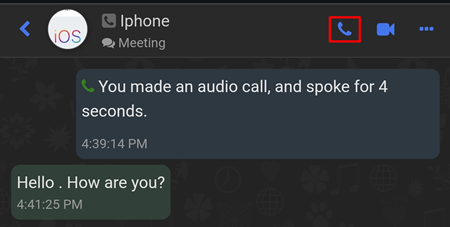
If there is a history of a voice call or a text message exchange, you can also click on the name of the user directly and click on the call button.
Caller
To other Browser Phone users
After dialling, there will be a Please hold, your call is being connected to most appropriate device voice prompt.
There is an option to leave a voice message to the callee without connected to the callee's device. To do this, while the call is being connected, select the  button, press 1 and leave the message.
If you do not have an internet access, you can still make a call by ringing +61 499 331 111 and follow the voice prompt. There are two options, to join a Meeting or dial a SIP number.
If the caller chooses to join a meeting by calling +61 499 331 111, then an existing meeting must already be available, and the caller will need to enter the meeting number to join.
Callee
When there is an incoming call to the Browser Phone, there will be a normal incoming call to your device from one of our numbers, e.g: 0499 331 111. Once you answer this call, the call will automatically be disconnected.
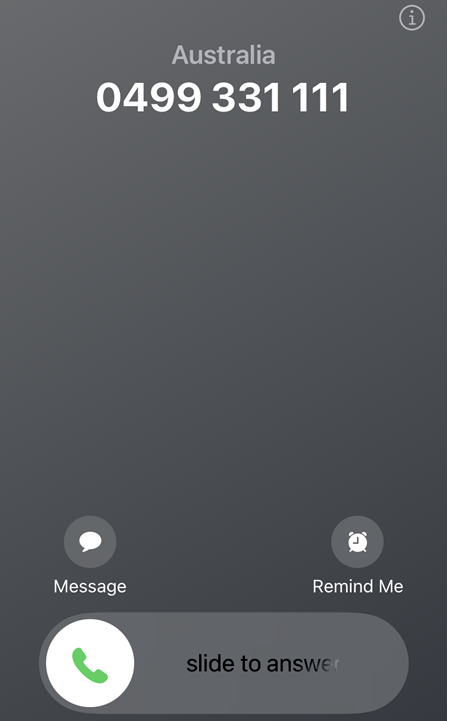
This call is just a notification to let you know that there is an incoming call to the Browser Phone. Simply open the notification and select the Home Assistant Incoming Call from notification.
On iOS, long press the notification to display the Webphone, Meeting and Voicemail.
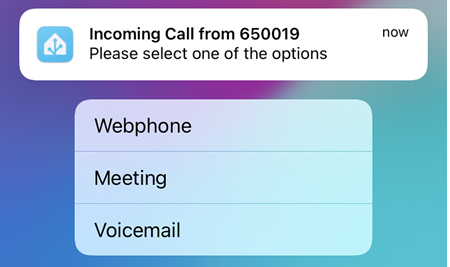
On Android, simply select the down arrow key to display the Webphone, Meeting and Voicemail.
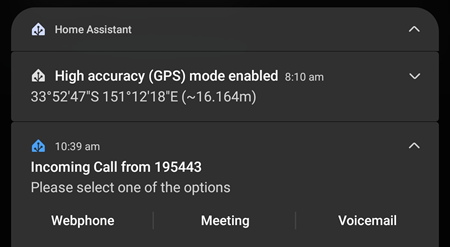
Webphone
If Webphone is selected, it means you want to take the call and it will open the Browser Phone which will enable you to accept the call. If you decide not to accept the call, simply select the Reject Call button which will prompt the caller to leave a voice message.
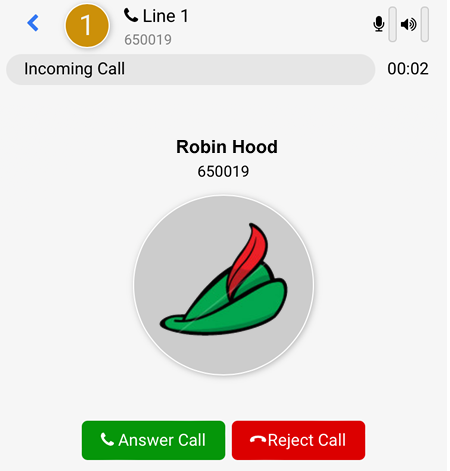
Meeting
If meeting is selected, the caller will be transferred to the Meeting page of the callee automatically.
Voicemail
If voicemail is selected, the caller will be prompted to leave a voice message which is emailed to user@quuvoo4ohcequuox.0.88.io.
The voice messages are also accessible by dialling *98 from the Alias Phone and enter the first 4 digits of the SIP password.
Call Transfer
To transfer call, select the  button (which will automatically put the current call on hold) and enter the number you want to transfer to.
In the example below, the number entered is 299947 and you can either do a Blind Transfer or an Attended Transfer.
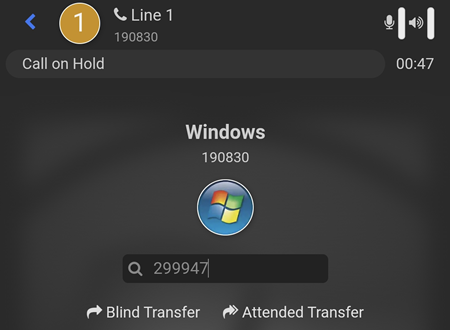
Blind Transfer
A Blind Transfer will forward the current call without having to wait for the receiving party to answer. In the example above, if the Blind Transfer is selected, number 190830 will be connected to 299947 regardless whether 299947 answers the call or not.
Attended Transfer
An Attended Transfer requires the forwarded call to be answered by the receiving party first. Once the call is answered, the person who initiates the call transfer can then connect number 190830 to number 299947 or cancel the transfer.
Conference Call
To initiate a Conference Call, select the  button (which will automatically put the current call on hold) and enter the number you want to invite to join the conference call and press the Call button.
Text Messages
To be able to send and receive text messages, please click on the Add User button to add the SIP Username of the user you want to send the text to. That user MUST also add your SIP Username on their device.
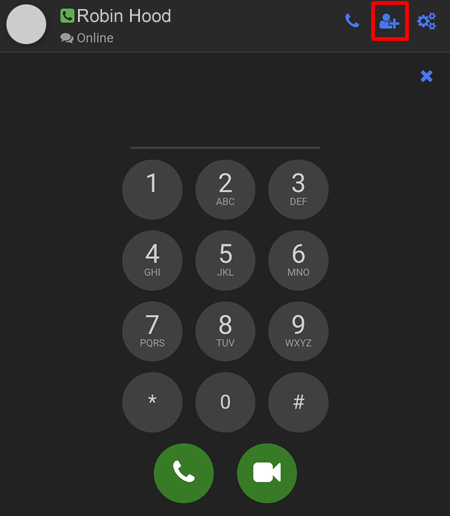
In the example below:
- Full Name: Iphone
- Extension including Message Exchange MUST be selected
- Extension Number: the SIP Username of the remote user
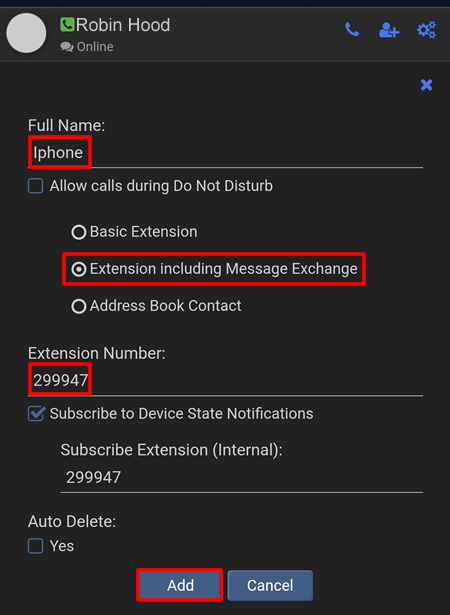
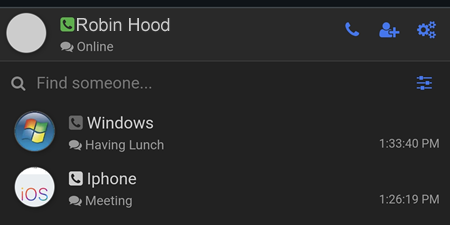
Once the Add button has been clicked, the iPhone user will be shown.
OPTIONAL
To show an avatar, add a contact number or an email address, click on the  button and select Configure Extension -> Appearance.
Upload an image, enter your details and click on the Save button.
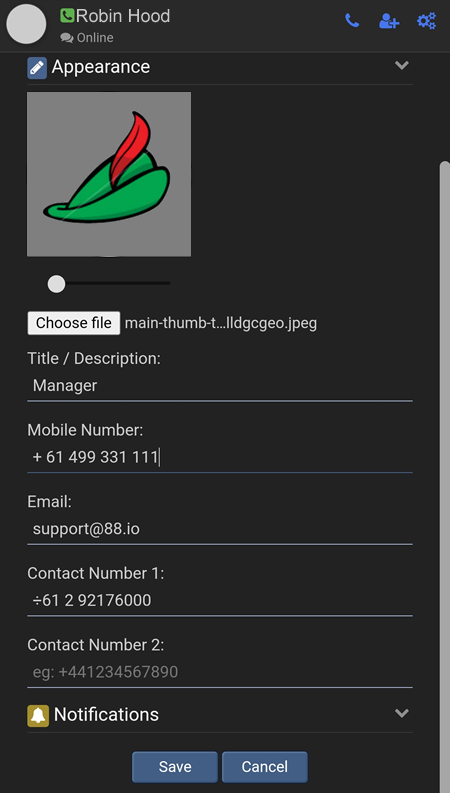
If successfully saved. your image will be visible by you and other users who add your SIP Username.