Personal Console lets you CONTROL your digital life (create aliases for different situations, define your own transactions, train your personal AI, sell insights from private data etc.) EASILY through your phone.
- Personal Console Introduction
- Personal Console Quick Start
- Personal Console User Guide
- Personal Console One Click Install
If you cannot wait to start collecting data into your Private Cyberspace, read the Quick Start page first.
1. Initial View
After ONE CLICK your web browser will be directed to your closest Application Integrator (e.g. console.aunsw.88.io) and your initial Personal Console will loaded from its web site in your browser.
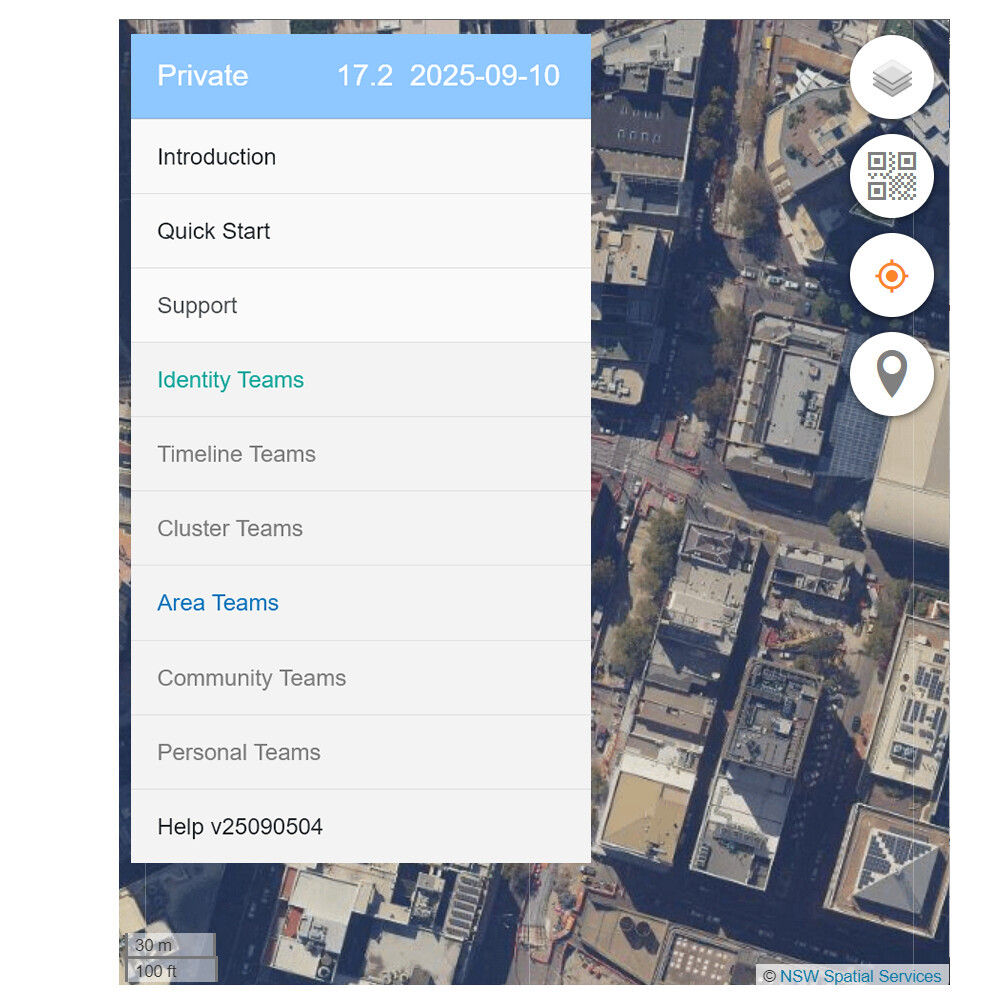
The screen shot above is typical of the Personal Console starting for the very first time. It is in Private mode, meaning you can use it to collect data for your own use, but it will NOT share any of the data out to anyone.
Personal Console are prepared by Application Integrators who normally have a region focus. In the case of app.contacttrace.com.au the focus is on the state of New South Wales (NSW) Australia, so it will have high resolution image map backgrounds for NSW only, but it will work worldwide.
The Personal Console is open sourced under its own license, we encourage you to inspect and modify its source code for your needs.
2. Screen Sections
Below is a screen shot of a Personal Console in Community mode, meaning you can use it to share some of the data you have collect ANONYMOUSLY. There is NO NEED to enter any identifying information e.g. no need for name, email, phone number etc.
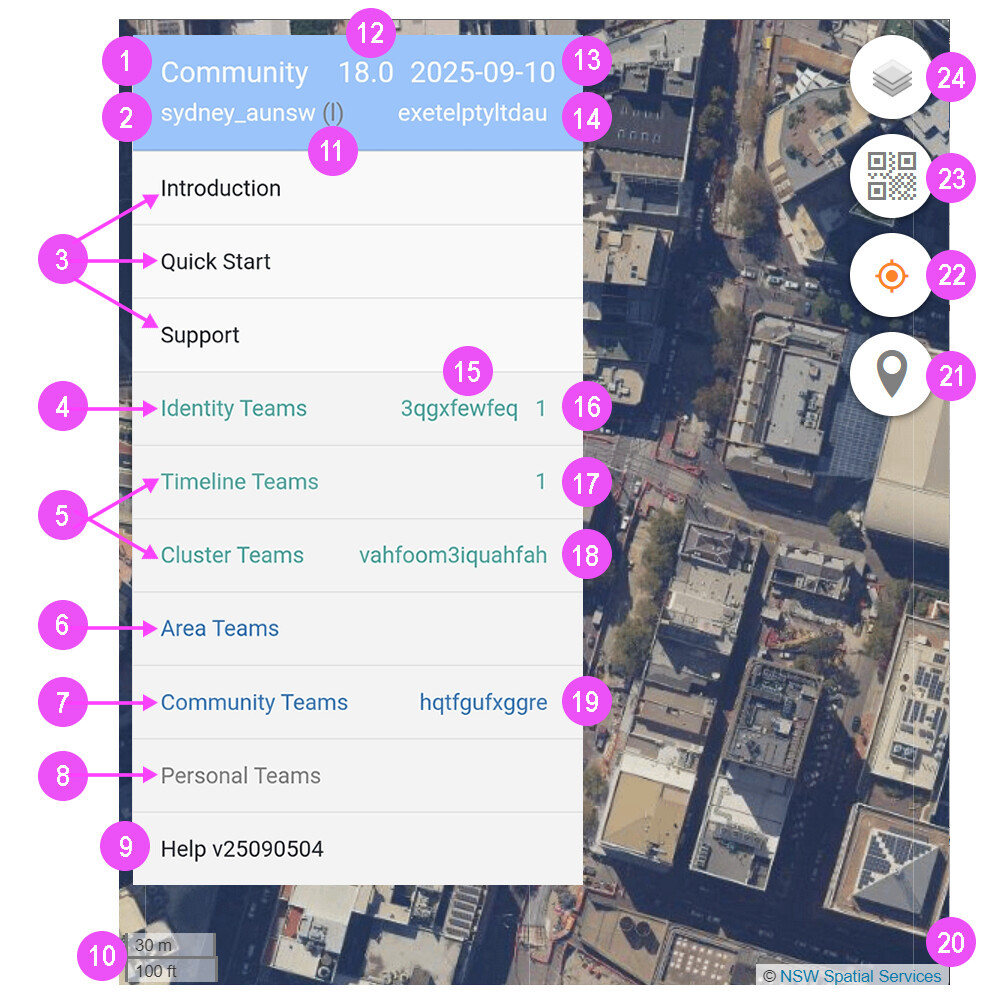
| Personal Console | Home Screen |
|---|---|
| 1 - Alias Type | 2 - District (device sensor) |
| 3 - Notification List | 4 - Alias Applications |
| 5 - Storage Applications | 6 - Area Applications |
| 7 - Community Applications | 8 - Personal Applications |
| 9 - Help Menu | 10 - Map Scale |
| 11 - IP Area Collection | 12 - Zoom Level |
| 13 - Date of Data Displayed | 14 - Internet Service Provider |
| 15 - First 10 Characters of Alias | 16 - Number of Coins |
| 17 - The Number of Status Submitted | 18 - Campus Code |
| 19 - Hub Username | 20 - Map Copyright |
| 21 - Location Pins | 22 - Current Location |
| 23 - Camera Scanner | 24 - Background Map |
Items in the Notification List will NOT be shown again, after clicked on once.
3. Screen Languages
Private Cyberspace is designed to be multilingual from the start. Your Private Cyberspace Integrator would have prepackaged the top few languages in your country into your initial cyberspace.
4. Console Version
Private Alias does NOT communicate with any backend servers so will NOT know whether there is a new version of Personal Console available.
Community and Personal Aliases do check from a web location specified by the owner for a new version and the latest version number will be displayed next to the existing version number if they are not the same.
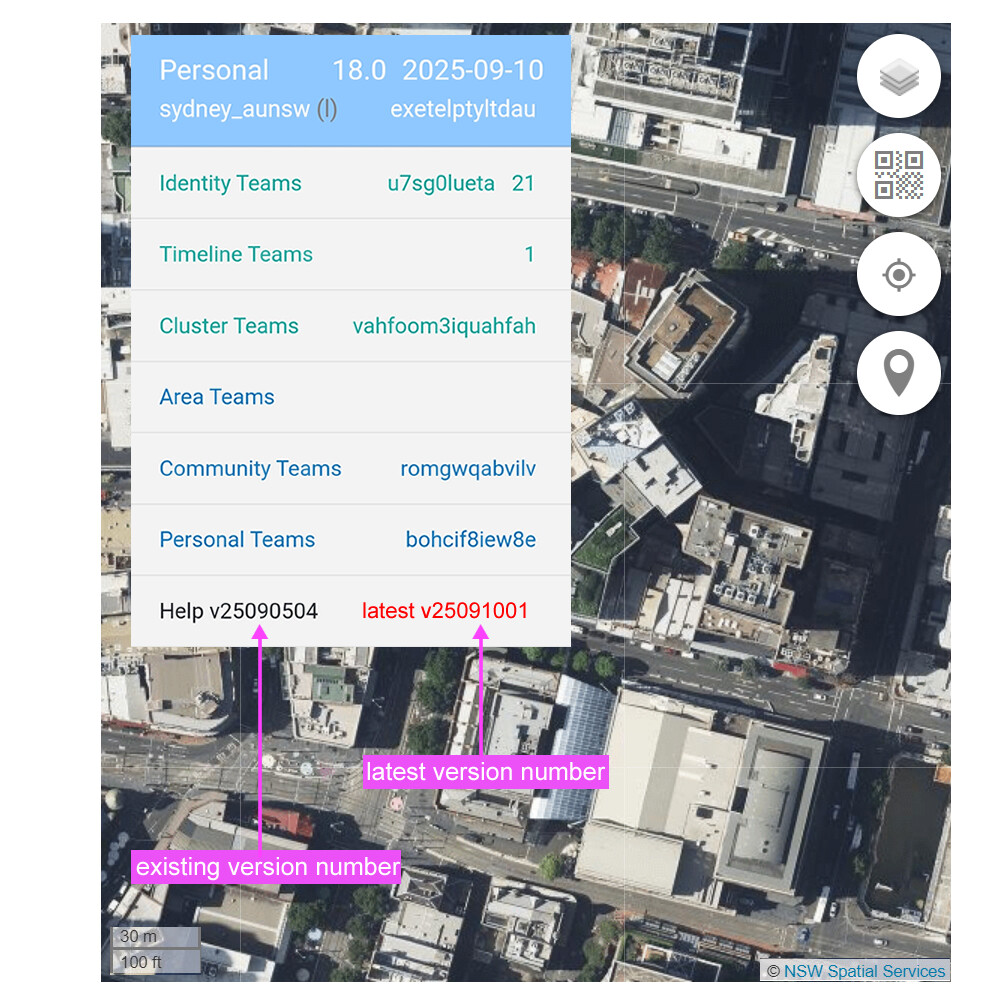
To simplify management the Personal Console version number covers changes in ALL applications within that Personal Console. So changes in any application will result in a new Personal Console version.
Owners can update to the new version simply by clicking on to the latest version number.